How it looks
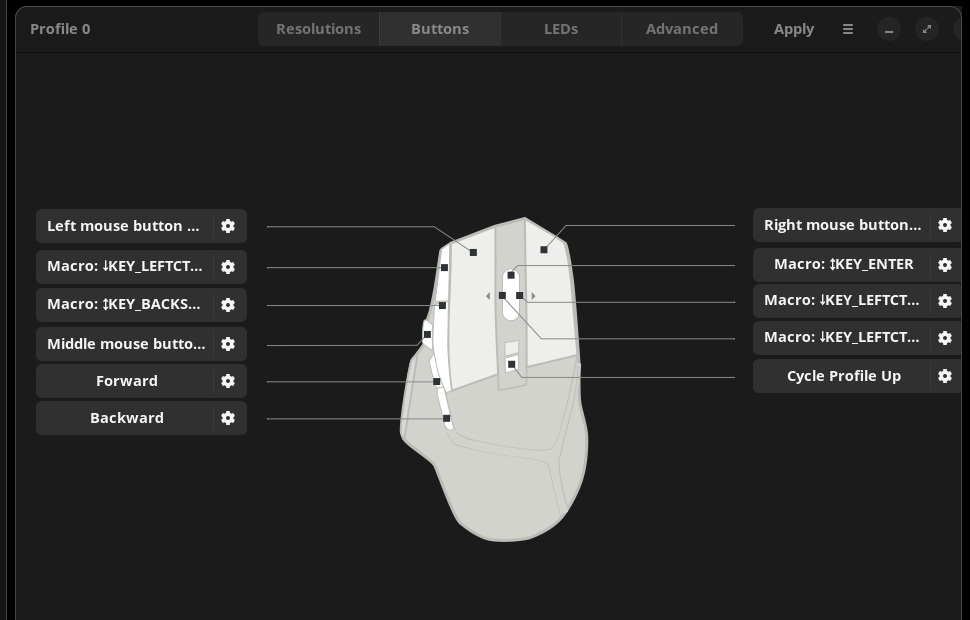
The same button-mapping screen you know, with two things added
Piper+ talks to your mouse the same way Piper does, through
ratbagd. Profiles, DPI, LEDs, and button mapping are
unchanged — this is the actual button page, running against a real
Logitech G502 X PLUS.
What's new
Two things Piper's button dialog couldn't do
Both live in the same dialog you already open to remap a button — no new window, no separate app.
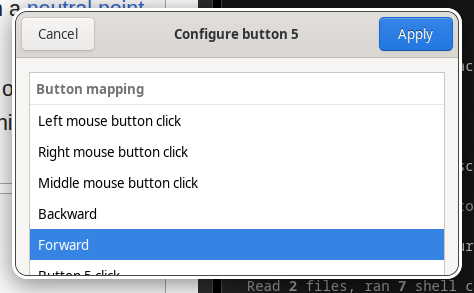
A searchable key picker
Piper only let you record a key by physically pressing it — no
way to pick a key you couldn't currently reach, and unreliable
under Wayland. Piper+ adds a filterable list of every key in
linux/input-event-codes.h, with modifier toggles.
A Quick Commands library
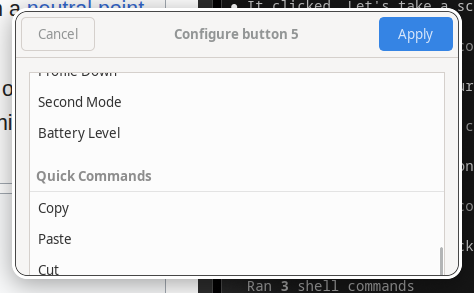
Common shortcuts used to mean hand-recording the same modifier+key sequence for every button, on every profile. Now they're presets — pick one, done.
- Copy
- Paste
- Cut
- Undo
- Redo
- Select All
- Save
- Find
- Close Tab
- Switch Window
- Screenshot
Installing
Ubuntu, Kubuntu, Pop!_OS, or Debian
Four steps, the last of which most people won't need.
Download the release
Grab piper-plus_<version>_amd64.deb and
setup-ratbagd.sh from the
latest release.
Install the package
$ sudo apt install ./piper-plus_<version>_amd64.deb
Get a current ratbagd, if you need it
Piper+ needs a current ratbagd. Some distros
package the old 0.17 D-Bus API outright; others (Ubuntu
included) report "0.18" but predate quirk fixes newer mice
need, so the version number alone can't tell you whether
yours is new enough. Check first:
$ ratbagctl list
If your mouse isn't listed, run the setup script once — it builds and installs a current ratbagd from source:
$ chmod +x setup-ratbagd.sh
$ ./setup-ratbagd.sh
Idempotent — safe to run any time, including after a firmware update or fresh install.
Plug in and launch
Connect your mouse via USB cable — wireless dongles generally
aren't supported by libratbag. Then launch Piper+
from your application menu, or run piper from a terminal.
Why a fork
Piper already does most of it
Device detection, profiles, DPI, LEDs, and button remapping via
ratbagd were already working and hardware-tested. Two
gaps were worth forking for, not rewriting for.
Key mapping was capture-only
Piper's button dialog had no browsable list of keys — you assigned one by physically pressing it while the dialog grabbed the keyboard, with an open question about Wayland reliability.
No one-click common actions
Copy/Paste/Cut/Undo and friends had to be hand-assembled by recording a modifier+key sequence, every time, for every button, for every profile.